

To run through this tutorial in your browser, use this colab notebook. For a more complex, multitenant RAG sample app and tutorial, see Namespace Notes.
How it works
GenAI chatbots built on Large Language Models (LLMs) can answer many questions. However, when the questions concern private data that the LLMs have not been trained on, you can get answers that sound convincing but are factually wrong. This behavior is referred to as “hallucination”. Retrieval augmented generation (RAG) is a framework that prevents hallucination by providing LLMs the knowledge that they are missing, based on private data stored in a vector database like Pinecone.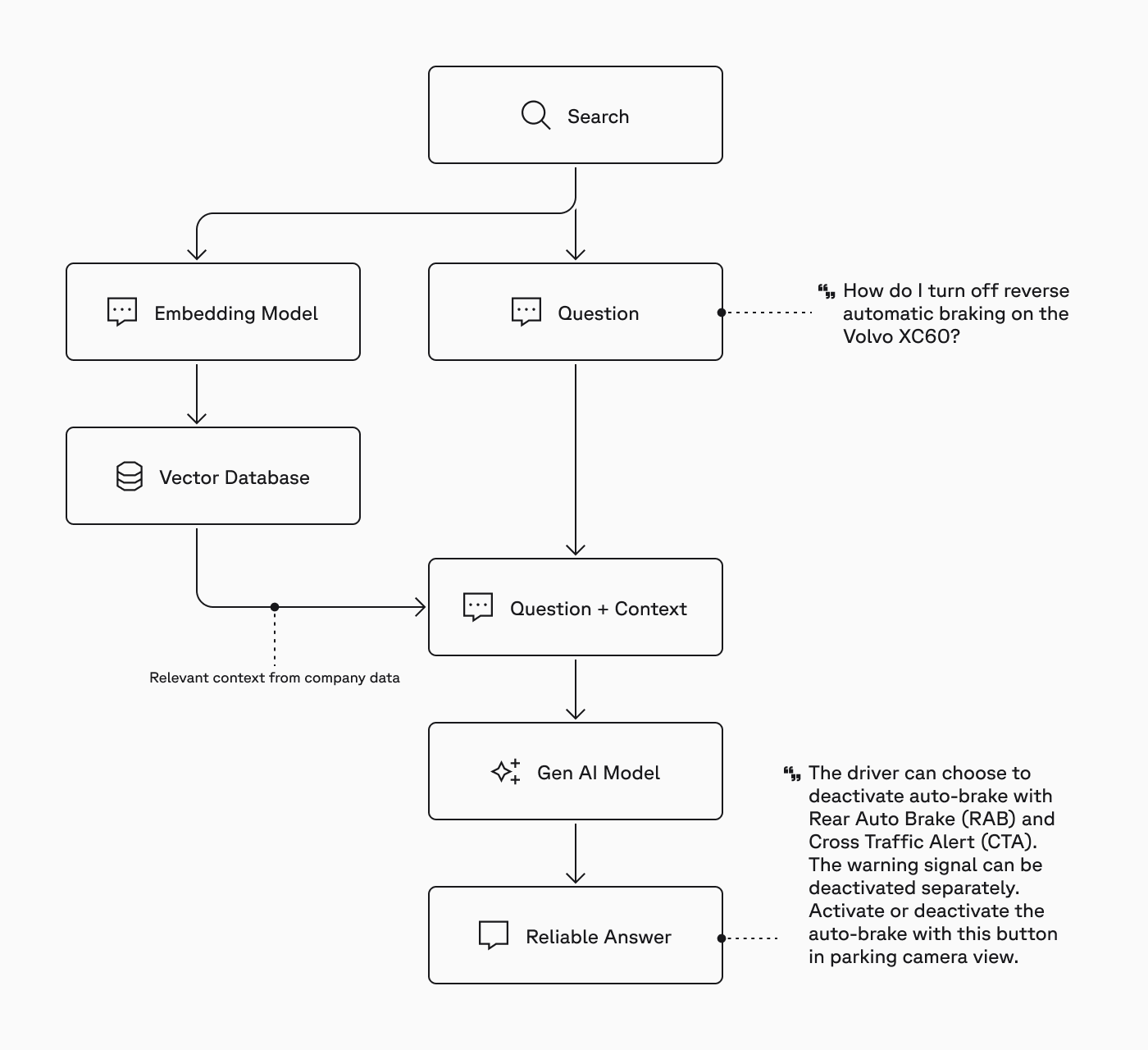
Before you begin
Ensure you have the following:- A Pinecone account and API key.
- An OpenAI account and API key.
1. Set up your environment
-
Install the Pinecone and LangChain libraries required for this tutorial:
pip install \ "pinecone" \ "langchain-pinecone" \ "langchain-openai" \ "langchain-text-splitters" \ "langchain" -
Set environment variables for your Pinecone and OpenAI API keys:
export PINECONE_API_KEY="<your Pinecone API key>" # available at app.pinecone.io
export OPENAI_API_KEY="<your OpenAI API key>" # available at platform.openai.com/api-keys
2. Store knowledge in Pinecone
For this tutorial, you’ll use a document about a fictional product called the WonderVector5000 that LLMs do not have any information about. First, you’ll use LangChain to chunk the document into smaller segments and create vector embeddings for each segment via Pinecone Inference. Then you’ll create a Pinecone index and upsert the vector embeddings into it.Pinecone Inference is an API service that gives you access to embedding models and reranking models hosted on Pinecone’s infrastructure. You can use the Inference API directly or through Langchain’s
PineconeEmbeddings class, as shown in this tutorial.Browse the document
Browse the document
Markdown
# The WonderVector5000: A Journey into Absurd Innovation

## Introduction

Welcome to the whimsical world of the WonderVector5000, an astonishing leap into the realms of imaginative technology. This extraordinary device, borne of creative fancy, promises to revolutionize absolutely nothing while dazzling you with its fantastical features. Whether you're a seasoned technophile or just someone looking for a bit of fun, the WonderVector5000 is sure to leave you amused and bemused in equal measure. Let's explore the incredible, albeit entirely fictitious, specifications, setup process, and troubleshooting tips for this marvel of modern nonsense.

## Product overview

The WonderVector5000 is packed with features that defy logic and physics, each designed to sound impressive while maintaining a delightful air of absurdity:

- Quantum Flibberflabber Engine: The heart of the WonderVector5000, this engine operates on principles of quantum flibberflabber, a phenomenon as mysterious as it is meaningless. It's said to harness the power of improbability to function seamlessly across multiple dimensions.

- Hyperbolic Singularity Matrix: This component compresses infinite possibilities into a singular hyperbolic state, allowing the device to predict outcomes with 0% accuracy, ensuring every use is a new adventure.

- Aetherial Flux Capacitor: Drawing energy from the fictional aether, this flux capacitor provides unlimited power by tapping into the boundless reserves of imaginary energy fields.

- Multi-Dimensional Holo-Interface: Interact with the WonderVector5000 through its holographic interface that projects controls and information in three-and-a-half dimensions, creating a user experience that's simultaneously futuristic and perplexing.

- Neural Fandango Synchronizer: This advanced feature connects directly to the user's brain waves, converting your deepest thoughts into tangible actions — albeit with results that are whimsically unpredictable.

- Chrono-Distortion Field: Manipulate time itself with the WonderVector5000's chrono-distortion field, allowing you to experience moments before they occur or revisit them in a state of temporal flux.

## Use cases

While the WonderVector5000 is fundamentally a device of fiction and fun, let's imagine some scenarios where it could hypothetically be applied:

- Time Travel Adventures: Use the Chrono-Distortion Field to visit key moments in history or glimpse into the future. While actual temporal manipulation is impossible, the mere idea sparks endless storytelling possibilities.

- Interdimensional Gaming: Engage with the Multi-Dimensional Holo-Interface for immersive, out-of-this-world gaming experiences. Imagine games that adapt to your thoughts via the Neural Fandango Synchronizer, creating a unique and ever-changing environment.

- Infinite Creativity: Harness the Hyperbolic Singularity Matrix for brainstorming sessions. By compressing infinite possibilities into hyperbolic states, it could theoretically help unlock unprecedented creative ideas.

- Energy Experiments: Explore the concept of limitless power with the Aetherial Flux Capacitor. Though purely fictional, the notion of drawing energy from the aether could inspire innovative thinking in energy research.

## Getting started

Setting up your WonderVector5000 is both simple and absurdly intricate. Follow these steps to unleash the full potential of your new device:

1. Unpack the Device: Remove the WonderVector5000 from its anti-gravitational packaging, ensuring to handle with care to avoid disturbing the delicate balance of its components.

2. Initiate the Quantum Flibberflabber Engine: Locate the translucent lever marked “QFE Start” and pull it gently. You should notice a slight shimmer in the air as the engine engages, indicating that quantum flibberflabber is in effect.

3. Calibrate the Hyperbolic Singularity Matrix: Turn the dials labeled "Infinity A" and "Infinity B" until the matrix stabilizes. You’ll know it's calibrated correctly when the display shows a single, stable “∞”.

4. Engage the Aetherial Flux Capacitor: Insert the EtherKey into the designated slot and turn it clockwise. A faint humming sound should confirm that the aetherial flux capacitor is active.

5. Activate the Multi-Dimensional Holo-Interface: Press the button resembling a floating question mark to activate the holo-interface. The controls should materialize before your eyes, slightly out of phase with reality.

6. Synchronize the Neural Fandango Synchronizer: Place the neural headband on your forehead and think of the word “Wonder”. The device will sync with your thoughts, a process that should take just a few moments.

7. Set the Chrono-Distortion Field: Use the temporal sliders to adjust the time settings. Recommended presets include “Past”, “Present”, and “Future”, though feel free to explore other, more abstract temporal states.

## Troubleshooting

Even a device as fantastically designed as the WonderVector5000 can encounter problems. Here are some common issues and their solutions:

- Issue: The Quantum Flibberflabber Engine won't start.

    - Solution: Ensure the anti-gravitational packaging has been completely removed. Check for any residual shards of improbability that might be obstructing the engine.

- Issue: The Hyperbolic Singularity Matrix displays “∞∞”.

    - Solution: This indicates a hyper-infinite loop. Reset the dials to zero and then adjust them slowly until the display shows a single, stable infinity symbol.

- Issue: The Aetherial Flux Capacitor isn't engaging.

    - Solution: Verify that the EtherKey is properly inserted and genuine. Counterfeit EtherKeys can often cause malfunctions. Replace with an authenticated EtherKey if necessary.

- Issue: The Multi-Dimensional Holo-Interface shows garbled projections.

    - Solution: Realign the temporal resonators by tapping the holographic screen three times in quick succession. This should stabilize the projections.

- Issue: The Neural Fandango Synchronizer causes headaches.

    - Solution: Ensure the headband is properly positioned and not too tight. Relax and focus on simple, calming thoughts to ease the synchronization process.

- Issue: The Chrono-Distortion Field is stuck in the past.

    - Solution: Increase the temporal flux by 5%. If this fails, perform a hard reset by holding down the “Future” slider for ten seconds.
-
Since your document is in Markdown, chunk the content based on structure to get semantically coherent segments. In this case,
headers_to_split_onspecifies h2 headers as the indicators of where to split.Pythonfrom langchain_text_splitters import MarkdownHeaderTextSplitter # Chunk the document based on h2 headers. markdown_document = "## Introduction\n\nWelcome to the whimsical world of the WonderVector5000, an astonishing leap into the realms of imaginative technology. This extraordinary device, borne of creative fancy, promises to revolutionize absolutely nothing while dazzling you with its fantastical features. Whether you're a seasoned technophile or just someone looking for a bit of fun, the WonderVector5000 is sure to leave you amused and bemused in equal measure. Let's explore the incredible, albeit entirely fictitious, specifications, setup process, and troubleshooting tips for this marvel of modern nonsense.\n\n## Product overview\n\nThe WonderVector5000 is packed with features that defy logic and physics, each designed to sound impressive while maintaining a delightful air of absurdity:\n\n- Quantum Flibberflabber Engine: The heart of the WonderVector5000, this engine operates on principles of quantum flibberflabber, a phenomenon as mysterious as it is meaningless. It's said to harness the power of improbability to function seamlessly across multiple dimensions.\n\n- Hyperbolic Singularity Matrix: This component compresses infinite possibilities into a singular hyperbolic state, allowing the device to predict outcomes with 0% accuracy, ensuring every use is a new adventure.\n\n- Aetherial Flux Capacitor: Drawing energy from the fictional aether, this flux capacitor provides unlimited power by tapping into the boundless reserves of imaginary energy fields.\n\n- Multi-Dimensional Holo-Interface: Interact with the WonderVector5000 through its holographic interface that projects controls and information in three-and-a-half dimensions, creating a user experience that's simultaneously futuristic and perplexing.\n\n- Neural Fandango Synchronizer: This advanced feature connects directly to the user's brain waves, converting your deepest thoughts into tangible actions—albeit with results that are whimsically unpredictable.\n\n- Chrono-Distortion Field: Manipulate time itself with the WonderVector5000's chrono-distortion field, allowing you to experience moments before they occur or revisit them in a state of temporal flux.\n\n## Use cases\n\nWhile the WonderVector5000 is fundamentally a device of fiction and fun, let's imagine some scenarios where it could hypothetically be applied:\n\n- Time Travel Adventures: Use the Chrono-Distortion Field to visit key moments in history or glimpse into the future. While actual temporal manipulation is impossible, the mere idea sparks endless storytelling possibilities.\n\n- Interdimensional Gaming: Engage with the Multi-Dimensional Holo-Interface for immersive, out-of-this-world gaming experiences. Imagine games that adapt to your thoughts via the Neural Fandango Synchronizer, creating a unique and ever-changing environment.\n\n- Infinite Creativity: Harness the Hyperbolic Singularity Matrix for brainstorming sessions. By compressing infinite possibilities into hyperbolic states, it could theoretically help unlock unprecedented creative ideas.\n\n- Energy Experiments: Explore the concept of limitless power with the Aetherial Flux Capacitor. Though purely fictional, the notion of drawing energy from the aether could inspire innovative thinking in energy research.\n\n## Getting started\n\nSetting up your WonderVector5000 is both simple and absurdly intricate. Follow these steps to unleash the full potential of your new device:\n\n1. Unpack the Device: Remove the WonderVector5000 from its anti-gravitational packaging, ensuring to handle with care to avoid disturbing the delicate balance of its components.\n\n2. Initiate the Quantum Flibberflabber Engine: Locate the translucent lever marked “QFE Start” and pull it gently. You should notice a slight shimmer in the air as the engine engages, indicating that quantum flibberflabber is in effect.\n\n3. Calibrate the Hyperbolic Singularity Matrix: Turn the dials labeled 'Infinity A' and 'Infinity B' until the matrix stabilizes. You'll know it's calibrated correctly when the display shows a single, stable “∞”.\n\n4. Engage the Aetherial Flux Capacitor: Insert the EtherKey into the designated slot and turn it clockwise. A faint humming sound should confirm that the aetherial flux capacitor is active.\n\n5. Activate the Multi-Dimensional Holo-Interface: Press the button resembling a floating question mark to activate the holo-interface. The controls should materialize before your eyes, slightly out of phase with reality.\n\n6. Synchronize the Neural Fandango Synchronizer: Place the neural headband on your forehead and think of the word “Wonder”. The device will sync with your thoughts, a process that should take just a few moments.\n\n7. Set the Chrono-Distortion Field: Use the temporal sliders to adjust the time settings. Recommended presets include “Past”, “Present”, and “Future”, though feel free to explore other, more abstract temporal states.\n\n## Troubleshooting\n\nEven a device as fantastically designed as the WonderVector5000 can encounter problems. Here are some common issues and their solutions:\n\n- Issue: The Quantum Flibberflabber Engine won't start.\n\n - Solution: Ensure the anti-gravitational packaging has been completely removed. Check for any residual shards of improbability that might be obstructing the engine.\n\n- Issue: The Hyperbolic Singularity Matrix displays “∞∞”.\n\n - Solution: This indicates a hyper-infinite loop. Reset the dials to zero and then adjust them slowly until the display shows a single, stable infinity symbol.\n\n- Issue: The Aetherial Flux Capacitor isn't engaging.\n\n - Solution: Verify that the EtherKey is properly inserted and genuine. Counterfeit EtherKeys can often cause malfunctions. Replace with an authenticated EtherKey if necessary.\n\n- Issue: The Multi-Dimensional Holo-Interface shows garbled projections.\n\n - Solution: Realign the temporal resonators by tapping the holographic screen three times in quick succession. This should stabilize the projections.\n\n- Issue: The Neural Fandango Synchronizer causes headaches.\n\n - Solution: Ensure the headband is properly positioned and not too tight. Relax and focus on simple, calming thoughts to ease the synchronization process.\n\n- Issue: The Chrono-Distortion Field is stuck in the past.\n\n - Solution: Increase the temporal flux by 5%. If this fails, perform a hard reset by holding down the “Future” slider for ten seconds." headers_to_split_on = [ ("##", "Header 2") ] markdown_splitter = MarkdownHeaderTextSplitter( headers_to_split_on=headers_to_split_on, strip_headers=False ) md_header_splits = markdown_splitter.split_text(markdown_document) print(md_header_splits) print("\n")Response[Document(metadata={'Header 2': 'Introduction'}, page_content="## Introduction \nWelcome to the whimsical world of the WonderVector5000, an astonishing leap into the realms of imaginative technology. This extraordinary device, borne of creative fancy, promises to revolutionize absolutely nothing while dazzling you with its fantastical features. Whether you're a seasoned technophile or just someone looking for a bit of fun, the WonderVector5000 is sure to leave you amused and bemused in equal measure. Let's explore the incredible, albeit entirely fictitious, specifications, setup process, and troubleshooting tips for this marvel of modern nonsense."), Document(metadata={'Header 2': 'Product overview'}, page_content="## Product overview \nThe WonderVector5000 is packed with features that defy logic and physics, each designed to sound impressive while maintaining a delightful air of absurdity: \n- Quantum Flibberflabber Engine: The heart of the WonderVector5000, this engine operates on principles of quantum flibberflabber, a phenomenon as mysterious as it is meaningless. It's said to harness the power of improbability to function seamlessly across multiple dimensions. \n- Hyperbolic Singularity Matrix: This component compresses infinite possibilities into a singular hyperbolic state, allowing the device to predict outcomes with 0% accuracy, ensuring every use is a new adventure. \n- Aetherial Flux Capacitor: Drawing energy from the fictional aether, this flux capacitor provides unlimited power by tapping into the boundless reserves of imaginary energy fields. \n- Multi-Dimensional Holo-Interface: Interact with the WonderVector5000 through its holographic interface that projects controls and information in three-and-a-half dimensions, creating a user experience that's simultaneously futuristic and perplexing. \n- Neural Fandango Synchronizer: This advanced feature connects directly to the user's brain waves, converting your deepest thoughts into tangible actions—albeit with results that are whimsically unpredictable. \n- Chrono-Distortion Field: Manipulate time itself with the WonderVector5000's chrono-distortion field, allowing you to experience moments before they occur or revisit them in a state of temporal flux."), Document(metadata={'Header 2': 'Use cases'}, page_content="## Use cases \nWhile the WonderVector5000 is fundamentally a device of fiction and fun, let's imagine some scenarios where it could hypothetically be applied: \n- Time Travel Adventures: Use the Chrono-Distortion Field to visit key moments in history or glimpse into the future. While actual temporal manipulation is impossible, the mere idea sparks endless storytelling possibilities. \n- Interdimensional Gaming: Engage with the Multi-Dimensional Holo-Interface for immersive, out-of-this-world gaming experiences. Imagine games that adapt to your thoughts via the Neural Fandango Synchronizer, creating a unique and ever-changing environment. \n- Infinite Creativity: Harness the Hyperbolic Singularity Matrix for brainstorming sessions. By compressing infinite possibilities into hyperbolic states, it could theoretically help unlock unprecedented creative ideas. \n- Energy Experiments: Explore the concept of limitless power with the Aetherial Flux Capacitor. Though purely fictional, the notion of drawing energy from the aether could inspire innovative thinking in energy research."), Document(metadata={'Header 2': 'Getting started'}, page_content="## Getting started \nSetting up your WonderVector5000 is both simple and absurdly intricate. Follow these steps to unleash the full potential of your new device: \n1. Unpack the Device: Remove the WonderVector5000 from its anti-gravitational packaging, ensuring to handle with care to avoid disturbing the delicate balance of its components. \n2. Initiate the Quantum Flibberflabber Engine: Locate the translucent lever marked “QFE Start” and pull it gently. You should notice a slight shimmer in the air as the engine engages, indicating that quantum flibberflabber is in effect. \n3. Calibrate the Hyperbolic Singularity Matrix: Turn the dials labeled 'Infinity A' and 'Infinity B' until the matrix stabilizes. You'll know it's calibrated correctly when the display shows a single, stable “∞”. \n4. Engage the Aetherial Flux Capacitor: Insert the EtherKey into the designated slot and turn it clockwise. A faint humming sound should confirm that the aetherial flux capacitor is active. \n5. Activate the Multi-Dimensional Holo-Interface: Press the button resembling a floating question mark to activate the holo-interface. The controls should materialize before your eyes, slightly out of phase with reality. \n6. Synchronize the Neural Fandango Synchronizer: Place the neural headband on your forehead and think of the word “Wonder”. The device will sync with your thoughts, a process that should take just a few moments. \n7. Set the Chrono-Distortion Field: Use the temporal sliders to adjust the time settings. Recommended presets include “Past”, “Present”, and “Future”, though feel free to explore other, more abstract temporal states."), Document(metadata={'Header 2': 'Troubleshooting'}, page_content="## Troubleshooting \nEven a device as fantastically designed as the WonderVector5000 can encounter problems. Here are some common issues and their solutions: \n- Issue: The Quantum Flibberflabber Engine won't start. \n- Solution: Ensure the anti-gravitational packaging has been completely removed. Check for any residual shards of improbability that might be obstructing the engine. \n- Issue: The Hyperbolic Singularity Matrix displays “∞∞”. \n- Solution: This indicates a hyper-infinite loop. Reset the dials to zero and then adjust them slowly until the display shows a single, stable infinity symbol. \n- Issue: The Aetherial Flux Capacitor isn't engaging. \n- Solution: Verify that the EtherKey is properly inserted and genuine. Counterfeit EtherKeys can often cause malfunctions. Replace with an authenticated EtherKey if necessary. \n- Issue: The Multi-Dimensional Holo-Interface shows garbled projections. \n- Solution: Realign the temporal resonators by tapping the holographic screen three times in quick succession. This should stabilize the projections. \n- Issue: The Neural Fandango Synchronizer causes headaches. \n- Solution: Ensure the headband is properly positioned and not too tight. Relax and focus on simple, calming thoughts to ease the synchronization process. \n- Issue: The Chrono-Distortion Field is stuck in the past. \n- Solution: Increase the temporal flux by 5%. If this fails, perform a hard reset by holding down the “Future” slider for ten seconds.")] -
Initialize a LangChain embedding object. This is what you will use to create vectors from the document above and store them in Pinecone. Note that this step uses a Pinecone API key you set as an environment variable earlier.
Python
from langchain_pinecone import PineconeEmbeddings import os model_name = 'multilingual-e5-large' embeddings = PineconeEmbeddings( model=model_name, pinecone_api_key=os.environ.get('PINECONE_API_KEY') ) -
Create a Pinecone index to store the document in. Define the cloud region and index name and set the index dimensions and distance metric to match those of the Pinecone
multilingual-e5-largemodel you’ll use to create the embeddings:Pythonfrom pinecone import Pinecone, ServerlessSpec import time pc = Pinecone(api_key=os.environ.get("PINECONE_API_KEY")) cloud = os.environ.get('PINECONE_CLOUD') or 'aws' region = os.environ.get('PINECONE_REGION') or 'us-east-1' spec = ServerlessSpec(cloud=cloud, region=region) index_name = "rag-getting-started" if index_name not in pc.list_indexes().names(): pc.create_index( name=index_name, dimension=embeddings.dimension, metric="cosine", spec=spec ) # See that it is empty print("Index before upsert:") print(pc.Index(index_name).describe_index_stats()) print("\n")Response{'dimension': 1024, 'index_fullness': 0.0, 'namespaces': {}, 'total_vector_count': 0} -
Embed and upsert each chunk as a distinct record in a namespace called
wondervector5000. Namespaces let you partition records within an index and are essential for implementing multitenancy when you need to isolate the data of each customer/user.Pythonfrom langchain_pinecone import PineconeVectorStore namespace = "wondervector5000" docsearch = PineconeVectorStore.from_documents( documents=md_header_splits, index_name=index_name, embedding=embeddings, namespace=namespace ) time.sleep(5) # See how many vectors have been upserted print("Index after upsert:") print(pc.Index(index_name).describe_index_stats()) print("\n") time.sleep(2)Response{'dimension': 1024, 'index_fullness': 0.0, 'namespaces': {'wondervector5000': {'vector_count': 5}}, 'total_vector_count': 5} -
Use Pinecone’s
listandqueryoperations to look at one of the records:Pythonindex = pc.Index(index_name) namespace = "wondervector5000" for ids in index.list(namespace=namespace): query = index.query( id=ids[0], namespace=namespace, top_k=1, include_values=True, include_metadata=True ) print(query) print("\n")Response{'matches': [{'id': '8a7e5227-a738-4422-9c25-9a6136825803', 'metadata': {'Header 2': 'Introduction', 'text': '## Introduction \n' 'Welcome to the whimsical world of the ' 'WonderVector5000, an astonishing leap into ' 'the realms of imaginative technology. This ' 'extraordinary device, borne of creative ' 'fancy, promises to revolutionize ' 'absolutely nothing while dazzling you with ' "its fantastical features. Whether you're a " 'seasoned technophile or just someone ' 'looking for a bit of fun, the ' 'WonderVector5000 is sure to leave you ' "amused and bemused in equal measure. Let's " 'explore the incredible, albeit entirely ' 'fictitious, specifications, setup process, ' 'and troubleshooting tips for this marvel ' 'of modern nonsense.'}, 'score': 1.0080868, 'values': [-0.00798303168, 0.00551192369, -0.00463955849, -0.00585730933, ... ]}], 'namespace': 'wondervector5000', 'usage': {'read_units': 6}}
3. Use the chatbot
Now that your document is stored as embeddings in Pinecone, when you send questions to the LLM, you can add relevant knowledge from your Pinecone index to ensure that the LLM returns an accurate response.-
Initialize a LangChain object for chatting with OpenAI’s
gpt-4o-miniLLM. OpenAI is a paid service, so running the remainder of this tutorial may incur some small cost.Pythonfrom langchain_openai import ChatOpenAI from langchain.chains import create_retrieval_chain from langchain.chains.combine_documents import create_stuff_documents_chain from langchain import hub retrieval_qa_chat_prompt = hub.pull("langchain-ai/retrieval-qa-chat") retriever=docsearch.as_retriever() llm = ChatOpenAI( openai_api_key=os.environ.get('OPENAI_API_KEY'), model_name='gpt-4o-mini', temperature=0.0 ) combine_docs_chain = create_stuff_documents_chain( llm, retrieval_qa_chat_prompt ) retrieval_chain = create_retrieval_chain(retriever, combine_docs_chain) -
Define a few questions about the WonderVector5000. These questions require specific, private knowledge of the product, which the LLM does not have by default.
Python
query1 = "What are the first 3 steps for getting started with the WonderVector5000?" query2 = "The Neural Fandango Synchronizer is giving me a headache. What do I do?" -
Send
query1to the LLM without relevant context from Pinecone:Notice that this first response sounds convincing but is entirely fabricated. This is an hallucination.Pythonanswer1_without_knowledge = llm.invoke(query1) print("Query 1:", query1) print("\nAnswer without knowledge:\n\n", answer1_without_knowledge.content) print("\n") time.sleep(2)ResponseQuery 1: What are the first 3 steps for getting started with the WonderVector5000? Answer without knowledge: To get started with the WonderVector5000, follow these initial steps: 1. **Unboxing and Setup**: Carefully unbox the WonderVector5000 and ensure all components are included. Place the device on a stable surface and connect it to a power source using the provided power adapter. 2. **Initial Configuration**: Power on the device and follow the on-screen instructions to set up your preferences. This may include selecting your language, connecting to Wi-Fi, and updating the firmware if necessary. 3. **User Manual Review**: Familiarize yourself with the user manual or quick start guide that comes with the device. This will provide you with essential information about features, controls, and troubleshooting tips. Once these steps are completed, you can explore the full capabilities of the WonderVector5000! -
Try again, but this time provide the right context from Pinecone:
Notice that this second response provides very accurate getting started steps, matching closely the information in the WonderVector5000 document.Python
answer1_with_knowledge = retrieval_chain.invoke({"input": query1}) print("Answer with knowledge:\n\n", answer1_with_knowledge['answer']) print("\nContext used:\n\n", answer1_with_knowledge['context']) print("\n") time.sleep(2)ResponseAnswer with knowledge: The first three steps for getting started with the WonderVector5000 are: 1. Unpack the Device: Remove the WonderVector5000 from its anti-gravitational packaging, ensuring to handle with care to avoid disturbing the delicate balance of its components. 2. Initiate the Quantum Flibberflabber Engine: Locate the translucent lever marked “QFE Start” and pull it gently. You should notice a slight shimmer in the air as the engine engages, indicating that quantum flibberflabber is in effect. 3. Calibrate the Hyperbolic Singularity Matrix: Turn the dials labeled 'Infinity A' and 'Infinity B' until the matrix stabilizes. You'll know it's calibrated correctly when the display shows a single, stable “∞”. Context Used: [Document(id='91f5d2cd-7e02-4adb-b77c-7fef4ab1c575', metadata={'Header 2': 'Getting started'}, page_content="## Getting started \nSetting up your WonderVector5000 is both simple and absurdly intricate. Follow these steps to unleash the full potential of your new device: \n1. Unpack the Device: Remove the WonderVector5000 from its anti-gravitational packaging, ensuring to handle with care to avoid disturbing the delicate balance of its components. \n2. Initiate the Quantum Flibberflabber Engine: Locate the translucent lever marked “QFE Start” and pull it gently. You should notice a slight shimmer in the air as the engine engages, indicating that quantum flibberflabber is in effect. \n3. Calibrate the Hyperbolic Singularity Matrix: Turn the dials labeled 'Infinity A' and 'Infinity B' until the matrix stabilizes. You'll know it's calibrated correctly when the display shows a single, stable “∞”. \n4. Engage the Aetherial Flux Capacitor: Insert the EtherKey into the designated slot and turn it clockwise. A faint humming sound should confirm that the aetherial flux capacitor is active. \n5. Activate the Multi-Dimensional Holo-Interface: Press the button resembling a floating question mark to activate the holo-interface. The controls should materialize before your eyes, slightly out of phase with reality. \n6. Synchronize the Neural Fandango Synchronizer: Place the neural headband on your forehead and think of the word “Wonder”. The device will sync with your thoughts, a process that should take just a few moments. \n7. Set the Chrono-Distortion Field: Use the temporal sliders to adjust the time settings. Recommended presets include “Past”, “Present”, and “Future”, though feel free to explore other, more abstract temporal states."), Document(id='b4bdd3fd-3534-46dc-9400-c92dea814274', metadata={'Header 2': 'Introduction'}, page_content="## Introduction \nWelcome to the whimsical world of the WonderVector5000, an astonishing leap into the realms of imaginative technology. This extraordinary device, borne of creative fancy, promises to revolutionize absolutely nothing while dazzling you with its fantastical features. Whether you're a seasoned technophile or just someone looking for a bit of fun, the WonderVector5000 is sure to leave you amused and bemused in equal measure. Let's explore the incredible, albeit entirely fictitious, specifications, setup process, and troubleshooting tips for this marvel of modern nonsense."), Document(id='7f78cd13-e616-4c94-92bf-d67f4d6a4c75', metadata={'Header 2': 'Troubleshooting'}, page_content="## Troubleshooting \nEven a device as fantastically designed as the WonderVector5000 can encounter problems. Here are some common issues and their solutions: \n- Issue: The Quantum Flibberflabber Engine won't start. \n- Solution: Ensure the anti-gravitational packaging has been completely removed. Check for any residual shards of improbability that might be obstructing the engine. \n- Issue: The Hyperbolic Singularity Matrix displays “∞∞”. \n- Solution: This indicates a hyper-infinite loop. Reset the dials to zero and then adjust them slowly until the display shows a single, stable infinity symbol. \n- Issue: The Aetherial Flux Capacitor isn't engaging. \n- Solution: Verify that the EtherKey is properly inserted and genuine. Counterfeit EtherKeys can often cause malfunctions. Replace with an authenticated EtherKey if necessary. \n- Issue: The Multi-Dimensional Holo-Interface shows garbled projections. \n- Solution: Realign the temporal resonators by tapping the holographic screen three times in quick succession. This should stabilize the projections. \n- Issue: The Neural Fandango Synchronizer causes headaches. \n- Solution: Ensure the headband is properly positioned and not too tight. Relax and focus on simple, calming thoughts to ease the synchronization process. \n- Issue: The Chrono-Distortion Field is stuck in the past. \n- Solution: Increase the temporal flux by 5%. If this fails, perform a hard reset by holding down the “Future” slider for ten seconds."), Document(id='e0938c8e-b647-4367-be8b-3f2fb3ead8b4', metadata={'Header 2': 'Product overview'}, page_content="## Product overview \nThe WonderVector5000 is packed with features that defy logic and physics, each designed to sound impressive while maintaining a delightful air of absurdity: \n- Quantum Flibberflabber Engine: The heart of the WonderVector5000, this engine operates on principles of quantum flibberflabber, a phenomenon as mysterious as it is meaningless. It's said to harness the power of improbability to function seamlessly across multiple dimensions. \n- Hyperbolic Singularity Matrix: This component compresses infinite possibilities into a singular hyperbolic state, allowing the device to predict outcomes with 0% accuracy, ensuring every use is a new adventure. \n- Aetherial Flux Capacitor: Drawing energy from the fictional aether, this flux capacitor provides unlimited power by tapping into the boundless reserves of imaginary energy fields. \n- Multi-Dimensional Holo-Interface: Interact with the WonderVector5000 through its holographic interface that projects controls and information in three-and-a-half dimensions, creating a user experience that's simultaneously futuristic and perplexing. \n- Neural Fandango Synchronizer: This advanced feature connects directly to the user's brain waves, converting your deepest thoughts into tangible actions—albeit with results that are whimsically unpredictable. \n- Chrono-Distortion Field: Manipulate time itself with the WonderVector5000's chrono-distortion field, allowing you to experience moments before they occur or revisit them in a state of temporal flux.")] -
Repeat the process with
query2:Again, notice how this first response sounds convincing but is entirely fabricated. This is an hallucination.Pythonanswer2_without_knowledge = llm.invoke(query2) print("Query 2:", query2) print("\nAnswer without knowledge:\n\n", answer2_without_knowledge.content) print("\n") time.sleep(2)ResponseQuery 2: The Neural Fandango Synchronizer is giving me a headache. What do I do? Answer without knowledge: It sounds like you're dealing with a complex issue related to the Neural Fandango Synchronizer. Here are some steps you can take to alleviate your headache and address the problem: 1. **Take a Break**: Step away from the task for a little while. A short break can help clear your mind and reduce stress. 2. **Hydrate**: Make sure you're drinking enough water. Dehydration can contribute to headaches. 3. **Review Documentation**: If you have access to manuals or documentation for the Neural Fandango Synchronizer, take some time to review them. Sometimes, a fresh look at the material can provide clarity. 4. **Simplify the Problem**: Break down the issue into smaller, more manageable parts. Focus on one aspect at a time rather than trying to tackle everything at once. 5. **Seek Help**: If you're part of a team or community, don’t hesitate to ask for assistance. Sometimes, a different perspective can help you see the solution. 6. **Use Relaxation Techniques**: Try deep breathing exercises, meditation, or gentle stretching to help relieve tension. 7. **Consult Online Resources**: Look for forums, tutorials, or videos that might provide insights or solutions related to the Neural Fandango Synchronizer. 8. **Consider Professional Help**: If the issue persists and is critical, consider reaching out to a professional or expert who specializes in the technology you're working with. If you provide more specific details about the problem you're facing, I might be able to offer more targeted advice! -
Try again, but this time provide the right contexst from Pinecone:
Notice that this second response provides very accurate troubleshooting guidance, matching closely the information in the WonderVector5000 document.Python
answer2_with_knowledge = retrieval_chain.invoke({"input": query2}) print("\nAnswer with knowledge:\n\n", answer2_with_knowledge['answer']) print("\nContext Used:\n\n", answer2_with_knowledge['context']) print("\n") time.sleep(2)ResponseAnswer with knowledge: To alleviate the headache caused by the Neural Fandango Synchronizer, ensure that the headband is properly positioned and not too tight. Additionally, try to relax and focus on simple, calming thoughts to ease the synchronization process. Context Used: [Document(id='90c7fa9d-ad4e-4cf4-b91e-34a15b1e9c73', metadata={'Header 2': 'Troubleshooting'}, page_content="## Troubleshooting \nEven a device as fantastically designed as the WonderVector5000 can encounter problems. Here are some common issues and their solutions: \n- Issue: The Quantum Flibberflabber Engine won't start. \n- Solution: Ensure the anti-gravitational packaging has been completely removed. Check for any residual shards of improbability that might be obstructing the engine. \n- Issue: The Hyperbolic Singularity Matrix displays “∞∞”. \n- Solution: This indicates a hyper-infinite loop. Reset the dials to zero and then adjust them slowly until the display shows a single, stable infinity symbol. \n- Issue: The Aetherial Flux Capacitor isn't engaging. \n- Solution: Verify that the EtherKey is properly inserted and genuine. Counterfeit EtherKeys can often cause malfunctions. Replace with an authenticated EtherKey if necessary. \n- Issue: The Multi-Dimensional Holo-Interface shows garbled projections. \n- Solution: Realign the temporal resonators by tapping the holographic screen three times in quick succession. This should stabilize the projections. \n- Issue: The Neural Fandango Synchronizer causes headaches. \n- Solution: Ensure the headband is properly positioned and not too tight. Relax and focus on simple, calming thoughts to ease the synchronization process. \n- Issue: The Chrono-Distortion Field is stuck in the past. \n- Solution: Increase the temporal flux by 5%. If this fails, perform a hard reset by holding down the “Future” slider for ten seconds."), Document(id='4e687c73-a955-4cff-ab4d-4b7b44e944f8', metadata={'Header 2': 'Getting started'}, page_content="## Getting started \nSetting up your WonderVector5000 is both simple and absurdly intricate. Follow these steps to unleash the full potential of your new device: \n1. Unpack the Device: Remove the WonderVector5000 from its anti-gravitational packaging, ensuring to handle with care to avoid disturbing the delicate balance of its components. \n2. Initiate the Quantum Flibberflabber Engine: Locate the translucent lever marked “QFE Start” and pull it gently. You should notice a slight shimmer in the air as the engine engages, indicating that quantum flibberflabber is in effect. \n3. Calibrate the Hyperbolic Singularity Matrix: Turn the dials labeled 'Infinity A' and 'Infinity B' until the matrix stabilizes. You'll know it's calibrated correctly when the display shows a single, stable “∞”. \n4. Engage the Aetherial Flux Capacitor: Insert the EtherKey into the designated slot and turn it clockwise. A faint humming sound should confirm that the aetherial flux capacitor is active. \n5. Activate the Multi-Dimensional Holo-Interface: Press the button resembling a floating question mark to activate the holo-interface. The controls should materialize before your eyes, slightly out of phase with reality. \n6. Synchronize the Neural Fandango Synchronizer: Place the neural headband on your forehead and think of the word “Wonder”. The device will sync with your thoughts, a process that should take just a few moments. \n7. Set the Chrono-Distortion Field: Use the temporal sliders to adjust the time settings. Recommended presets include “Past”, “Present”, and “Future”, though feel free to explore other, more abstract temporal states."), Document(id='2944b853-ca05-430a-8397-6b926d93f698', metadata={'Header 2': 'Product overview'}, page_content="## Product overview \nThe WonderVector5000 is packed with features that defy logic and physics, each designed to sound impressive while maintaining a delightful air of absurdity: \n- Quantum Flibberflabber Engine: The heart of the WonderVector5000, this engine operates on principles of quantum flibberflabber, a phenomenon as mysterious as it is meaningless. It's said to harness the power of improbability to function seamlessly across multiple dimensions. \n- Hyperbolic Singularity Matrix: This component compresses infinite possibilities into a singular hyperbolic state, allowing the device to predict outcomes with 0% accuracy, ensuring every use is a new adventure. \n- Aetherial Flux Capacitor: Drawing energy from the fictional aether, this flux capacitor provides unlimited power by tapping into the boundless reserves of imaginary energy fields. \n- Multi-Dimensional Holo-Interface: Interact with the WonderVector5000 through its holographic interface that projects controls and information in three-and-a-half dimensions, creating a user experience that's simultaneously futuristic and perplexing. \n- Neural Fandango Synchronizer: This advanced feature connects directly to the user's brain waves, converting your deepest thoughts into tangible actions—albeit with results that are whimsically unpredictable. \n- Chrono-Distortion Field: Manipulate time itself with the WonderVector5000's chrono-distortion field, allowing you to experience moments before they occur or revisit them in a state of temporal flux."), Document(id='63528899-3d7a-4c1e-bf6f-79362f2bc3ec', metadata={'Header 2': 'Introduction'}, page_content="## Introduction \nWelcome to the whimsical world of the WonderVector5000, an astonishing leap into the realms of imaginative technology. This extraordinary device, borne of creative fancy, promises to revolutionize absolutely nothing while dazzling you with its fantastical features. Whether you're a seasoned technophile or just someone looking for a bit of fun, the WonderVector5000 is sure to leave you amused and bemused in equal measure. Let's explore the incredible, albeit entirely fictitious, specifications, setup process, and troubleshooting tips for this marvel of modern nonsense.")]
4. Clean up
When you no longer need therag-getting-started index, use the delete_index operation to delete it:
Python
pc.delete_index(index_name)
Next steps
- Learn more about RAG:
- RAG sample app:
- RAG notebooks: